.svg)


.svg)
Overview
The VMware vCenter Integration allows Cywift to securely connect with VMware vCenter Server to collect virtual infrastructure configurations, host details, virtual machine inventory, security posture, and compliance-related data.
This integration helps improve visibility across virtualized environments and supports compliance monitoring.
Before starting the integration, ensure the following:
• Administrative access to VMware vCenter Server
• vCenter hostname or IP address
• Valid username and password
• API access enabled
• Network connectivity between Cywift and vCenter Server
• Required permissions to access inventory and configuration data
Step 1: Create Read-Only User
Cywift uses API-based communication to securely collect virtualization and configuration data.
Create Read-Only User
Log in to VMware vCenter Server.
Navigate to:
Administration → Access Control → Users and Groups
Create a new user.
Assign the following role:
Role: Read-Only
Grant permissions at the vCenter root level and propagate to child objects.
Save the configuration.
Verify API Access
Test API connectivity:
curl -k -u<username>:<password> https://<vcenter-ip>/rest/com/vmware/cis/session
Validate Read-Only Access
Ensure the user can access inventory objects and configurations without modification permissions.
Important Notes:
• Use read-only permissions only
• Restrict API access to trusted systems
• Use strong credentials
• Ensure SSL connectivity is allowed
Step 2: Navigate to Integrations in Cywift
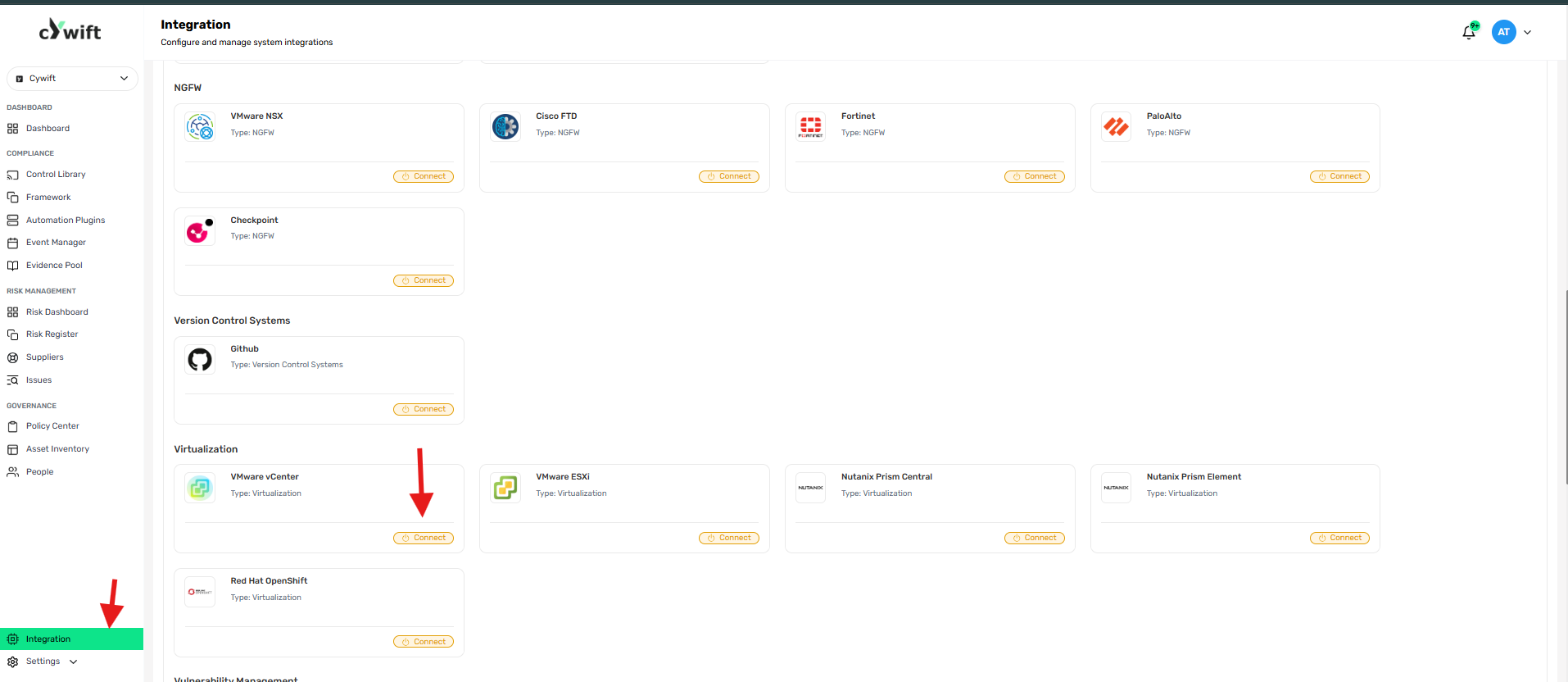
• Log in to the Cywift Platform
• Go to Integration from the left menu
• Under Virtualization
• Select VMware vCenter
• Click Connect
Step 3: Add Individual Integration
Use this option when integrating a single VMware vCenter Server.
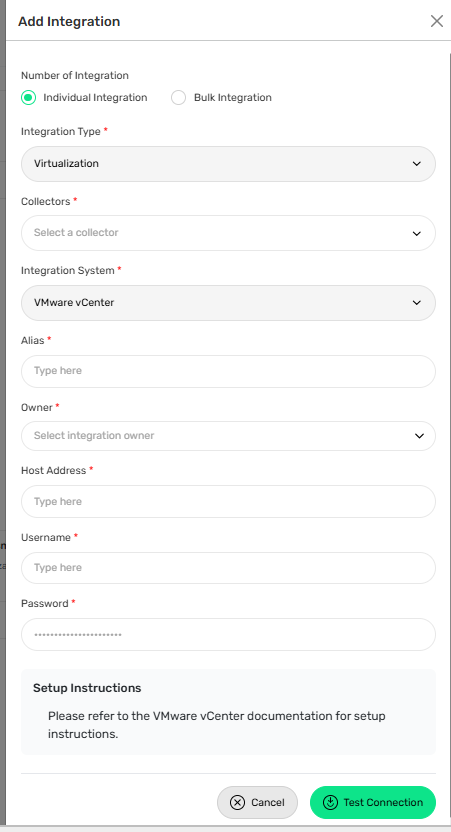
Required Fields
Number of Integration
Select Individual Integration
Integration Type
Select Virtualization
Collectors
Select a configured collector
Integration System
Select VMware vCenter
Alias
Enter a friendly name for the integration
Owner
Select the integration owner
Host Address
Enter the vCenter hostname or IP address
Username
Enter the read-only username
Password
Enter the corresponding password
Actions
Test Connection
Verifies API connectivity and authentication
Cancel
Discards configuration
Step 4: Add Bulk Integration
Use this option to integrate multiple VMware vCenter Servers.
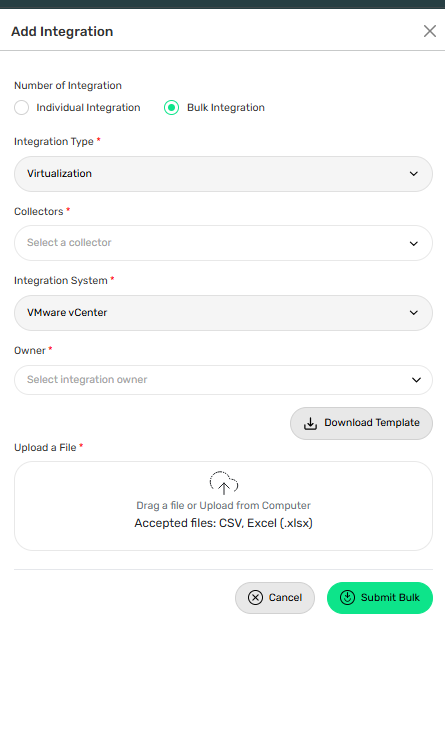
Steps
• Select Bulk Integration
• Choose Integration Type (Virtualization)
• Select Collectors
• Choose Integration System: VMware vCenter
• Click Download Template
• Fill in the template with required server details
• Upload the completed file
• Click Test Connection
Troubleshooting Tips
• Ensure vCenter API services are running
• Verify username and password
• Confirm read-only role assignment
• Check network connectivity
• Ensure firewall rules allow HTTPS/API access (default port 443)
• Verify SSL certificate trust if required