.svg)


.svg)
Juniper Junos
Overview
The Juniper Junos Integration allows Cywift to securely connect with Juniper devices running Junos OS to collect device inventory, configuration data, interface details, routing information, firewall filters, and hardening evidence.
Before starting the integration, ensure the following:
• Juniper device access
• Read-only network account
• SSH or NETCONF access enabled
• Device hostname or IP address
• Collector configured in Cywift
Step 1: Prepare Juniper Junos Access
- Log in to the Juniper device.
- Create a dedicated read-only user for the integration.
- Enable the required management access method.
- • SSH
• NETCONF (if applicable)
• SNMP (if applicable) - Assign the required permissions for operational and configuration data collection.
- Verify the device is reachable from the Cywift Collector.
Important Notes:
• Use a dedicated read-only account whenever possible
• Apply the principle of least privilege
• Restrict management access to trusted collector IP addresses
• Ensure the management interface is reachable
Step 2: Navigate to Integrations in Cywift
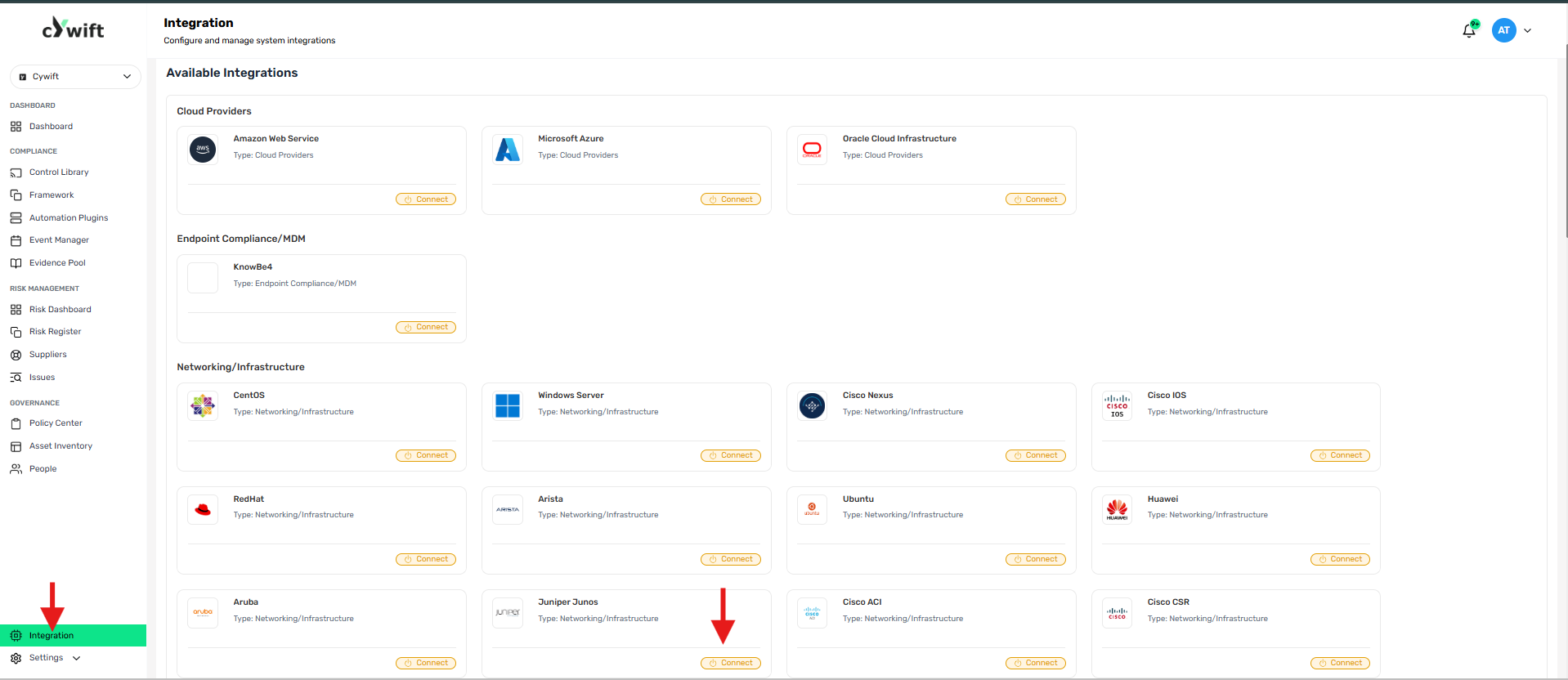
• Log in to the Cywift Platform
• Navigate to Integration
• Select Networking/Infrastructure
• Choose Juniper Junos
• Click Add Integration
Step 3: Add Individual Integration
Use this option when integrating a single Juniper Junos device.
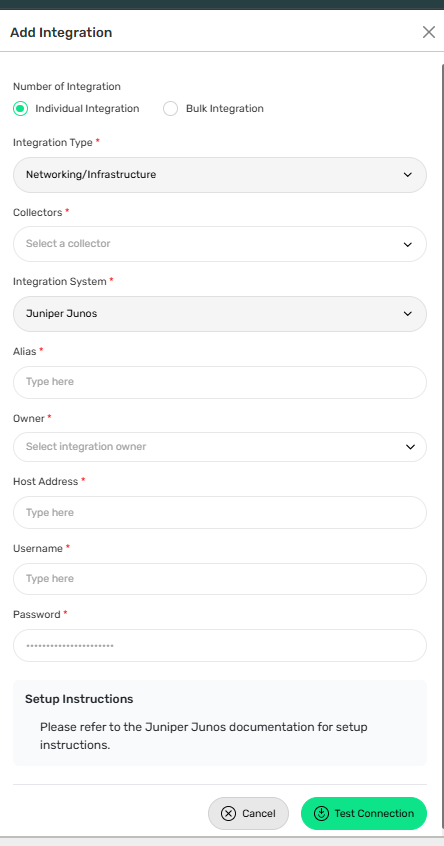
Required Fields:
• Select Individual Integration
• Select Juniper Junos from Networking/Infrastructure
• Select a configured Collector
• Enter an Integration Alias
• Select an Integration Owner
• Enter the Device Hostname or IP Address
• Enter the Username
• Enter the Password
Step 4: Add Bulk Integration
Use this option to integrate multiple Juniper Junos devices.
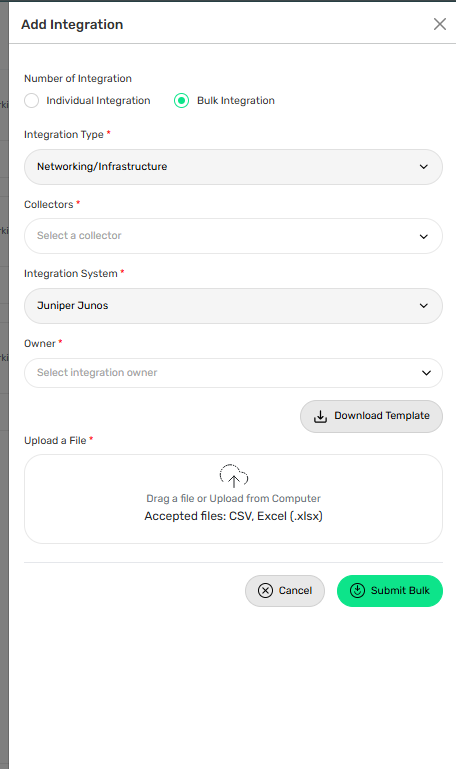
Steps:
• Select Bulk Integration
• Download the template
• Enter the required device details and credentials
• Upload the completed file
• Click Test Connection
• Save the integration
Troubleshooting Tips
• Verify SSH or NETCONF access is enabled
• Confirm the hostname or IP address is correct
• Validate the username and password
• Check management firewall filters and network access
• Ensure the collector can reach the device