.svg)


.svg)
Single Sign-On (SSO) with Microsoft Entra ID
Overview
Single Sign-On (SSO) allows organizations to connect the Cywift GRC Platform to a centralized Identity Provider (IdP) for authentication.
Cywift supports enterprise identity providers such as Microsoft Entra ID (Azure AD), LDAP directories, that support OAuth 2.0 / OpenID Connect (OIDC) or SAML.
This article explains how to configure Microsoft Entra ID (Azure AD) SSO with Cywift.
Supported SSO Behaviors
Auto-Provisioning & Just-in-Time (JIT) Provisioning
- User provisioning behavior depends on the IdP configuration and organization policy
- Users may be created automatically at first login (JIT) or pre-provisioned
SSO-Only Accounts
- When SSO-only mode is enabled, users cannot set local passwords
- Authentication is handled exclusively by Microsoft Entra ID
Fallback Authentication
- Administrators may configure fallback / break-glass accounts
- Ensures access if the IdP is unavailable
Who Can Configure SSO
- Administrators only
- Users with permissions to manage authentication and security settings
Microsoft Entra ID (Azure AD) Configuration
Step 1: Register an Application in Microsoft Entra ID
- Sign in to the Azure Portal.
- Go to Microsoft Entra ID → App registrations.
- Click New registration.
- Enter an application name (e.g., Cywift SSO).
- Complete the registration.
Step 2: Configure Redirect URI
- In the Azure app configuration, add a Redirect URI.
- Copy the Redirect URI exactly from Cywift
.png)
Step 3: Create Client Secret
- In Azure, go to Certificates & secrets.
- Create a Client Secret.
- Copy the secret value securely (it will be shown only once).
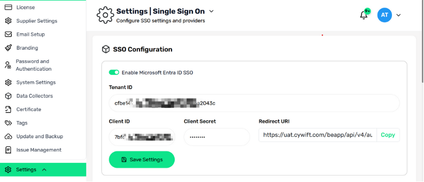
Step 4: Configure Microsoft Entra SSO in Cywift
In Cywift, enter the following details:
- Enable Microsoft Entra ID SSO
- Tenant ID
- Client ID
- Client Secret
- Redirect URI (auto-generated or copied)
- Click Save Settings to store the configuration.
.png)
Common Troubleshooting
Invalid redirect_uri
- Ensure the Redirect URI in Azure matches Cywift exactly
Invalid client secret
- Confirm the secret is valid and not expired
Missing user attributes
- Configure optional claims in Azure
- Verify group and email attributes are included