.svg)


.svg)
Data Collector Setup
Overview
Data Collectors allow Cywift to securely collect data from different environments such as cloud platforms and on-premise systems. These collectors act as connectors between Cywift and your infrastructure, enabling automated data ingestion for monitoring, compliance, and risk assessments.
Only users with appropriate administrative permissions can add, edit, or manage data collectors.
Who Can Use This Feature
Admins / Super Admins:
- Can add, edit, test, and manage data collectors.
Standard Users:
- Can view data collector status (read-only), if permitted by role.
Navigation Path
- Login to Cywift
- Go to Settings
- Select Data Collectors
You will see the Data Collectors list screen.
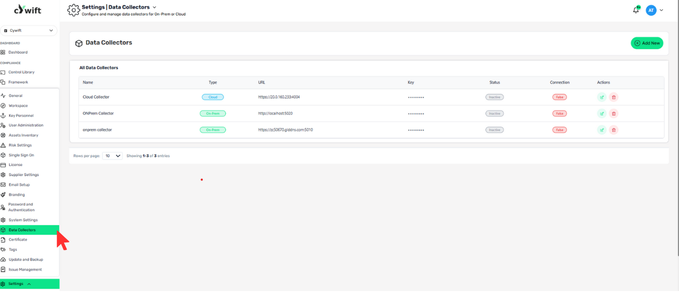
Data Collectors List View
The list shows all configured collectors with the following details:
- Name – Collector name
- Type – Cloud or On-Prem
- URL – Collector endpoint
- Key – Secure authentication key
- Status – Active or Inactive
- Connection – True / False (connectivity status)
- Actions – Edit options
Types of Data Collectors
1. Cloud Collector
Used when the collector is hosted in a cloud environment (public IP or cloud VM).
Typical use cases:
- SaaS integrations
- Cloud infrastructure monitoring
- External hosted services
2. On-Prem Collector
Used when the collector runs inside your internal network.
Typical use cases:
- Internal servers
- Local databases
- Private network systems
Edit an Existing Data Collector
Steps
- Go to Settings → Data Collectors
- Locate the collector you want to update
- Click Edit
Editable Fields
- Type (Cloud / On-Prem)
- Name
- URL
- Key
Click Test Connection
Click Save
.png)
Add a New Data Collector
Steps
- Go to Settings → Data Collectors
- Click Add New
Fill in the following fields:
- Click Test Connection
- If successful, click Save
The collector will now appear in the list.
.png)
.png)
Test Connection
The Test Connection button verifies:
- Network reachability
- Valid URL
- Correct authentication key
- Collector service availability
Connection Status Meaning
- True → Collector is reachable and authenticated
- False → Collector is not connected (check URL, key, or network)
.png)
Common Issues & Troubleshooting
Connection Status Shows "False"
- Ensure the collector service is running
- Verify the URL and port
- Check firewall or network restrictions
- Confirm the authentication key is correct
On-Prem Collector Not Connecting
- Ensure Cywift can reach the internal network
- Check VPN or tunnel configuration
- Verify SSL certificates if using HTTPS