.svg)


.svg)
PaloAlto Firewall
Overview
The Palo Alto Firewall Integration allows Cywift to securely connect with Palo Alto NGFW or Panorama to collect security, configuration, and compliance-related data. This integration helps automate monitoring, improve visibility, and support compliance requirements.
Before starting the integration, ensure the following:
- Administrative access to Palo Alto Firewall or Panorama
- Firewall hostname or IP address
- Valid administrator username and password
- Network connectivity between Cywift and the firewall
- Same master key configured on Panorama and managed firewalls (if using Panorama)
Step 1: Generate Palo Alto API KEY
Cywift uses the Palo Alto API for secure communication. An API Key is required for authentication.
Generate API Key
Make a POST request to the firewall or Panorama using admin credentials:
curl -H "Content-Type: application/x-www-form-urlencoded" -X POST https:///api/?type=keygen -d 'user=&password='
Successful Response Example:
<response status="success">
<result>
<key>***********************************************</key>
</result>
</response>
Important Notes:
- Copy the entire API key, including any symbols.
- Generating a new key will invalidate existing API sessions for that user.
- To revoke API keys, change the administrator password.
- Panorama and all managed firewalls must use the same master key.
Step 2: Navigate to Integrations in Cywift
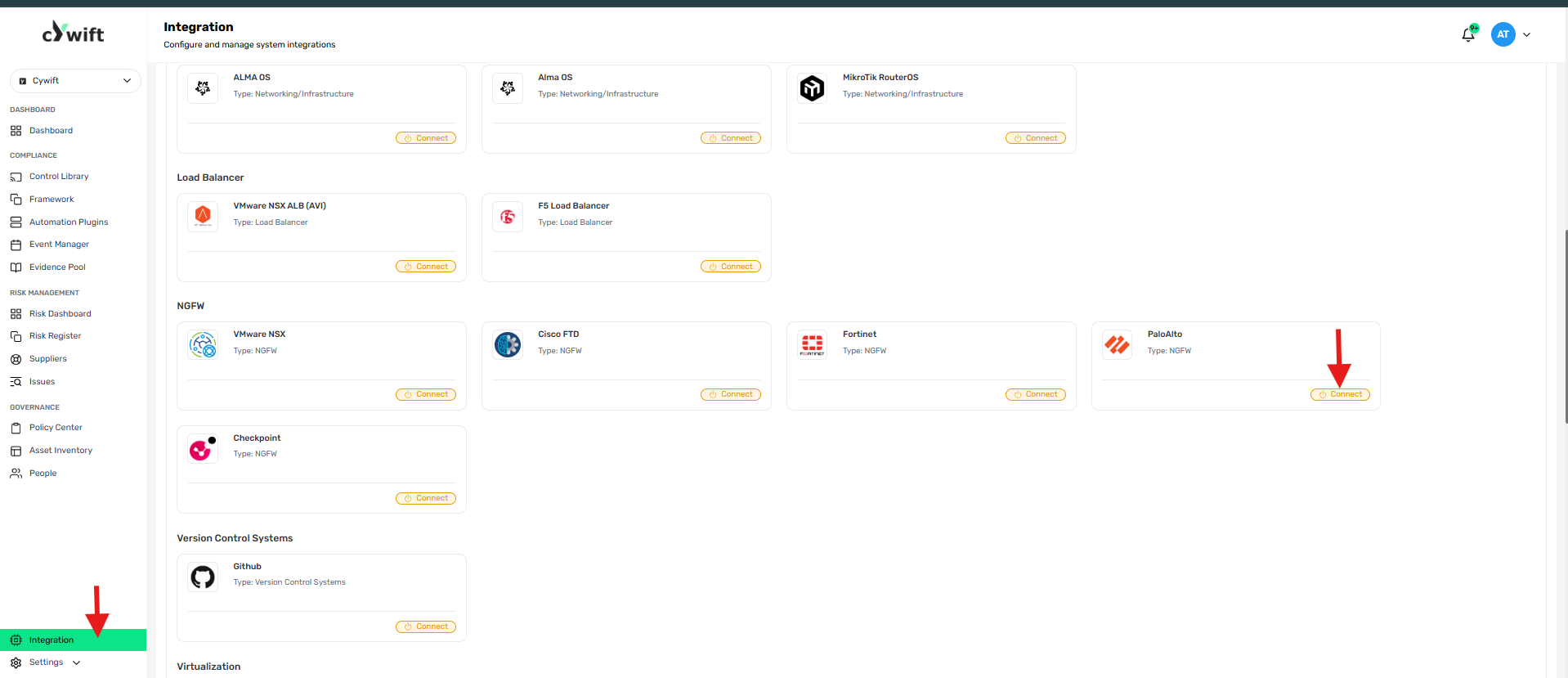
- Log in to the Cywift Platform
- Go to Integration from the left menu
- Select Palo Alto Firewall
- click connect
Step 3: Add Individual Integration

Use this option when integrating a single Palo Alto Firewall.
Required Fields
- Number of Integration
Select Individual Integration
- Integration Type
Select the appropriate firewall type (e.g., NGFW)
- Collectors
Select a configured collector
- Integration System
Palo Alto
- Alias
Enter a friendly name for the integration
- Owner
Select the integration owner
- Host Address
Enter the firewall hostname or IP address
- API Key
Paste the generated Palo Alto API key
Actions
- Test Connection
Verifies connectivity and authentication
- Cancel
Discards configuration
Step 4: Add Bulk Integration
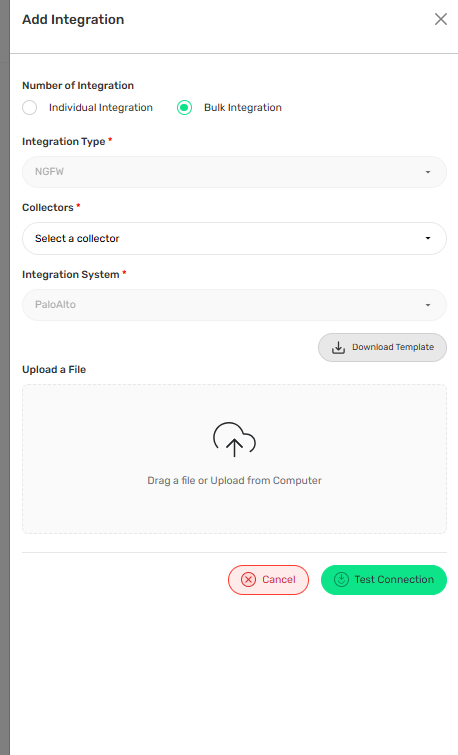
Use this option to integrate multiple Palo Alto firewalls at once.
Steps
- Select Bulk Integration
- Choose Integration Type (NGFW)
- Select Collectors
- Choose Integration System: Palo Alto
- Click Download Template
- Fill in the template with required firewall details
- Upload the completed file
- Click Test Connection
Troubleshooting Tips
- Ensure the firewall API is enabled
- Verify the API key is valid and not expired
- Confirm network connectivity and firewall access rules
- For Panorama, ensure all firewalls share the same master key