.svg)


.svg)
Reset/Forget Password
1. Forgot Password (Email / Password Login Enabled)
If your workspace uses standard email + password authentication, follow these steps:
Step 1 : Go to the Login Page
- Open the Cywift login page and enter your registered email address.
Step 2 : Click “Forgot Password”
- After entering your email, click the Forgot Password link displayed on the password screen.
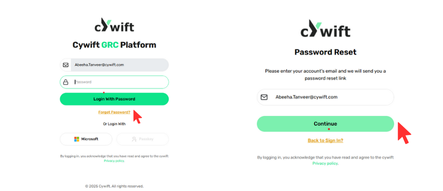
Step 3 : Receive Password Reset Email
- You will receive an email with a secure password reset link.
Step 4 : Set Your New Password
- Click the reset link in the email
- Create a new strong password
- Confirm the password
- Click update password
.png)
Step 5 : Login Again
- Return to the login page and log in with your new password.
2. Reset Password (From Profile Settings)
Users who are already logged in may want to update their password manually.
Step 1 : Go to Profile / Account Settings
- Click your profile icon
- click on user profile
- Click on security settings
.png)
Step 2 : Choose “ Change Password”
You will see fields to:
- Current Password
- New Password
- Confirm New Password
.png)
Step 3 : Save Changes
Click Update Password to apply changes
3. Password Reset for Microsoft SSO Users
If your organization uses Microsoft SSO, the password cannot be reset in Cywift.
Microsoft manages your credentials.
In this case:
- The “Forgot Password” option will redirect you to Microsoft’s password recovery page
- Use Microsoft’s flow to reset your password
- Once reset, you can log in to Cywift using Login with Microsoft
Troubleshooting
Not receiving password reset email?
- Check spam/junk folder
- Make sure your email is correct
- Contact your Cywift admin to confirm the account status
Reset link expired?
- Request a new reset email via Forgot Password
using Microsoft SSO but forgot Microsoft password?
- Reset via Microsoft security portal
- Cywift cannot reset Microsoft credentials