.svg)


.svg)
ManageEngine ServiceDesk Plus
Overview
The ManageEngine ServiceDesk Plus Integration allows Cywift to securely connect with ServiceDesk Plus to collect ticket, incident, request, asset, change, and service management data. It also supports automated ticket creation, remediation tracking, workflow updates, and evidence collection based on the assigned permissions.
Before starting the integration, ensure the following:
• ManageEngine ServiceDesk Plus administrator access
• ServiceDesk Plus Cloud or On-Premise deployment
• Technician API Key (On-Premise) or OAuth credentials (Cloud)
• Required user permissions assigned
• Collector configured in Cywift
Step 1: Prepare ServiceDesk Plus Access
- Identify your ServiceDesk Plus deployment type:
• On-Premise
• Cloud
- Configure authentication based on the deployment:
For On-Premise:
• Log in as an administrator
• Navigate to Admin → Technicians/Users
• Create or select a dedicated technician account
• Generate the Technician API Key (Authtoken)
• Copy and securely store the API Key
For Cloud:
• Log in to the Zoho API Console
• Create an OAuth client for the Cywift integration
• Generate the Client ID, Client Secret, and Refresh Token
• Securely store the generated credentials
- Assign the required permissions for:
• Requests and incidents
• Assets
• Changes
• Users or technicians (if required)
- Verify the ServiceDesk Plus instance is reachable from the Cywift Collector.
Important Notes:
• Use a dedicated service account whenever possible
• Assign only the minimum required permissions
• Store API credentials securely
• Rotate API keys and OAuth credentials periodically
Step 2: Navigate to Integrations in Cywift
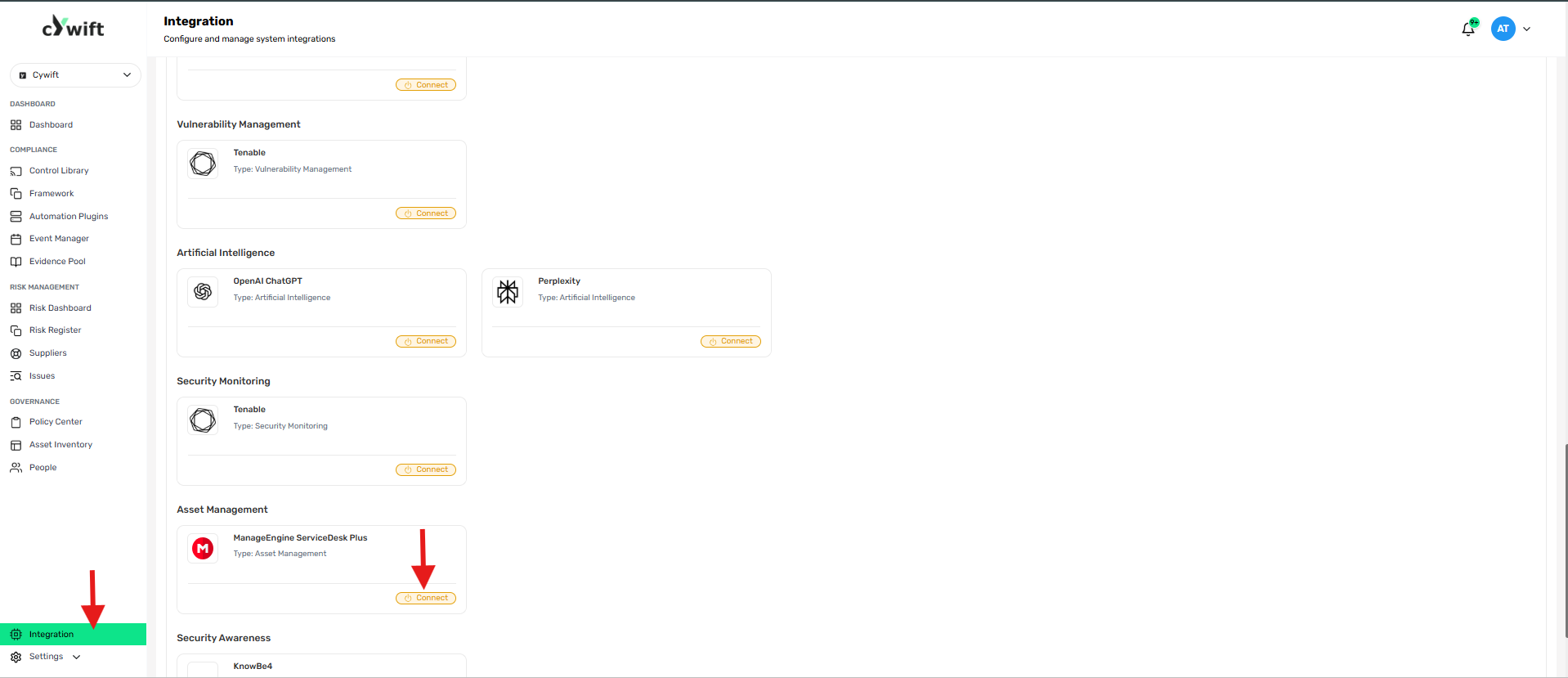
• Log in to the Cywift Platform
• Navigate to Integration
• Select Asset Management
• Choose ManageEngine ServiceDesk Plus
• Click Add Integration
Step 3: Add Individual Integration
Use this option when integrating a single ServiceDesk Plus instance.
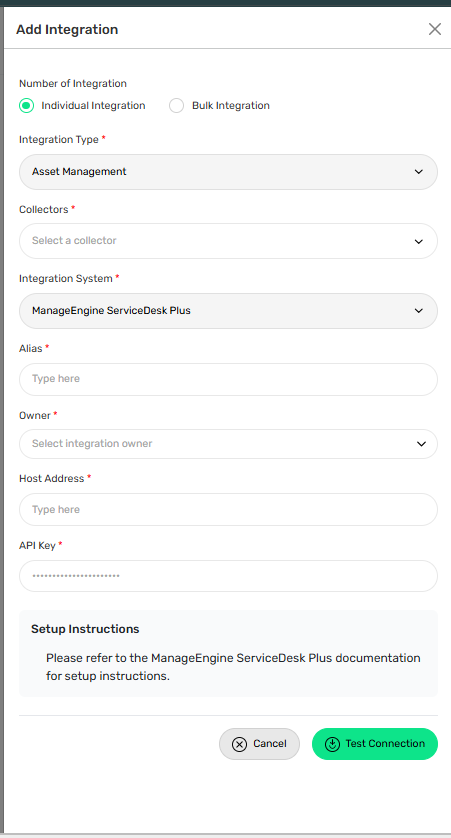
Required Fields:
• Select Individual Integration
• Select ManageEngine ServiceDesk Plus from Asset Management
• Select a configured Collector
• Enter an Integration Alias
• Select an Integration Owner
• Enter the ServiceDesk Plus URL
• Enter the Technician API Key or OAuth credentials
Step 4: Add Bulk Integration
Use this option to integrate multiple ServiceDesk Plus instances.
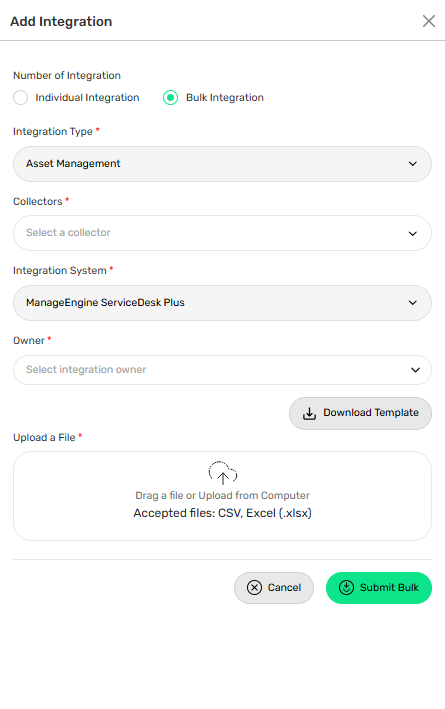
Steps:
• Select Bulk Integration
• Download the template
• Enter the required instance details and authentication credentials
• Upload the completed file
• Click Test Connection
• Save the integration
Troubleshooting Tips
• Verify the ServiceDesk Plus URL is correct
• Confirm the Technician API Key or OAuth credentials are valid
• Ensure the integration account has the required permissions
• Check HTTPS connectivity between the collector and ServiceDesk Plus
• Verify firewall or proxy settings are not blocking API access