.svg)


.svg)
User & Roles Administration
Overview
The User & Roles Administration module in Cywift allows administrators to manage the full user lifecycle and control access across the platform. From inviting new users to defining detailed role-based permissions, this section ensures secure and compliant access management.
It helps organizations:
- Secure sensitive data
- Implement least-privilege access
- Maintain accountability and compliance
- Manage users across multiple companies under one tenant
Navigation Path
- Log in to Cywift
- Go to Settings
- Click User Administration
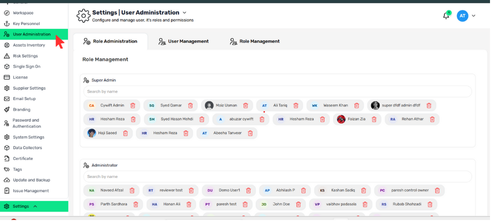
Inside User Administration, you will see three main sections:
- Role Administration
- User Management
- Role Management
Each section serves a different purpose and is explained below.
Role Administration (View Users by Role)
Purpose
Role Administration allows admins to view which users are assigned to which roles.
What you can do
- View predefined and custom roles (e.g., Super Admin, Administrator, Asset Owner)
- See all users assigned to a specific role
- Remove a user from a role if required
How it works
- Each role is displayed as a separate card or section
- Users assigned to that role are listed under it
- Use the Remove option beside a user to unassign them from that role
This section is mainly for visibility and quick role cleanup
.png)
User Management (Manage Users)
Purpose
User Management is used to add, edit, activate, deactivate, and manage users within Cywift.
Information shown in user list
- Name & Email
- Last Active date
- Password expiry status
- User status (Active / Scheduled / Expired)
- Assigned role
Authentication indicators:
- Passkey
- Two-Factor Authentication (2FA)
- Email authentication
.png)
Key actions
- Add User
- Edit User
- Search & Filter users by name, email, role, or status
- Manage pagination and records per page
Add User
- Click Add User
- Enter user details (Name, Email..)
- Assign role and company
- Send invitation
- The user receives an email to activate their account.
.png)
Edit User
- Click Edit against a user
- Update:
- Name or email
- Status (Active / Inactive)
- Assigned companies
- Role
- Default company
- Password expiry
Save changes
Admins can also:
- Reset password
- Delete user
- View assigned roles
.png)
Role Management (Create & Configure Roles)
Purpose
Role Management defines what each role can access inside Cywift using Role-Based Access Control (RBAC).
What you can do
- Create new roles
- Edit existing roles
- Define permissions per feature/module
- Enable notifications for roles (if applicable)
Permission Levels
For each module, admins can assign one of the following:
- No Access – user cannot see the module
- Read – view-only access
- Write – create or update data
- Full Access – complete control including delete and configuration
.png)
Add or Edit a Role
- Go to Role Management
- Click Add Role or select an existing role
- Enter role name and description
- Set permission levels for each module
- Save role
.png)
Understanding Common Roles (What they Mean)
Super Admin
- Full access to all features
- Manages users, roles, settings, and integrations
Administrator
- Manages users, roles, and operational settings
- No tenant-level restrictions unless configured
Asset Owner
- Responsible for assigned assets
- Limited to asset-related modules
Control Owner / Assignee / Auditor
- Control-specific access for governance workflows
Policy Roles
- Policy Owner, Contributor, Reviewer
- Limited to policy creation, review, or approval
Roles follow least-privilege access to improve security and compliance.