.svg)


.svg)
License Activation Guide
License Activation enables organizations to securely activate their Cywift subscription. The process involves generating a unique Seed Key from the platform, sharing it with the Cywift licensing team, and applying the License Key provided in response.
Once activated, the license defines your subscription validity, workspace limits, and feature access.
Navigation Path
- Log in to the Cywift Platform
- Go to Settings
- Click License
- Select Add New License
Step 1: Open the License Page
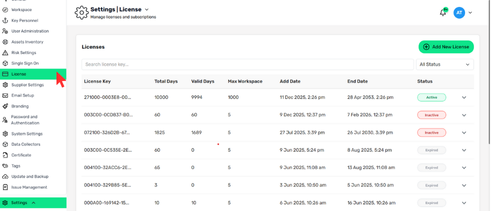
- Navigate to Settings → License
- Review existing licenses and their status (Active, Inactive, Expired)
- Click Add New License
.png)
Step 2: Generate the Seed Key
- In the Add New License window, click Generate
- A Seed Key will be generated automatically
- Copy the generated Seed Key
.png)
Step 3: Send the Seed Key
- Email the generated Seed Key to:
license@cywift.com
- The Seed Key is used by the Cywift licensing team to generate your License Key
.png)
Step 4: Receive the License Key
- Wait for a response from the Cywift licensing team
- You will receive a License Key via email once processing is complete
Step 5: Activate Your License
- Go back to the License page in the app.
- Paste the received License Key in the provided field and click Activate.
- You should now see a confirmation message indicating your license has been successfully activated.
.png)
Troubleshooting
License Activation Failed:
- Check if another license is already Active
- Only one license can be active at a time
Activate a New License:
- Deactivate the current active license
- Repeat the license activation steps